Using custom shape maps, you can build maps according to shapes that you've defined - for example, regions like EMEA, The Americas, and APAC. You must first configure and import a map file in the Admin console.
To connect to a custom map file that's been imported and configured, you must ensure that the selected data source in Model contains a geography hierarchy with the same keys as the given geo.json file.
Note: This feature is only available with Enterprise licensing.
Configuring Custom Maps
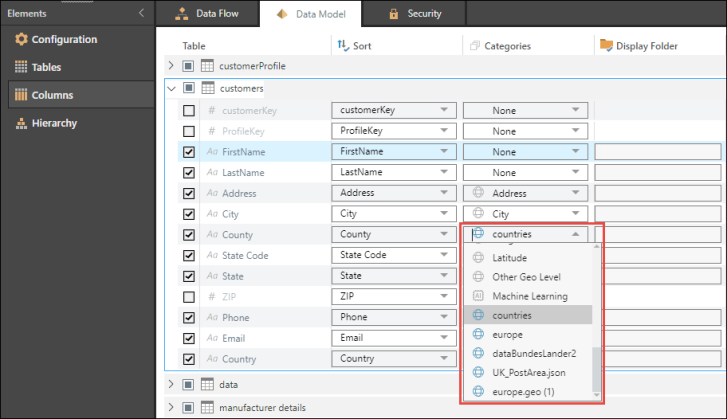
From the Columns tab in Data Model, open the Categories dropdown list for the relevant column. This is the column that contains the keys that describe the shapes in the custom shape map file that was configured in the Admin console. The imported custom map files appear at the bottom of the dropdown list with a blue globe icon; select the required map file (red highlight below).
Tip: You can also apply the map file category as a metadata overlay in Admin or Discover.